How do you keep AI private on Windows?
Decide what each AI app may use, then confirm it in Settings. Windows 11 keeps camera and microphone access under Privacy & security, but desktop apps share one switch instead of having one each. Recall, on Copilot+ PCs, stays off until you opt in. Ace for Windows runs on your PC, keeps your files there, and sends only your request and its context to the AI that answers.

Free Play: 2,000 credits, no card. Ace by Black Label.
Microphone and camera
- Open Start, then Settings, then Privacy & security, then Microphone or Camera.
- Check that the main switch and “Let apps access your microphone” match what you want.
- Microsoft Store apps have their own switches in the list. Desktop apps do not: one switch, “Let desktop apps access your microphone”, covers all of them.
- On Windows 10, the same settings sit under Settings, then Privacy.
Microsoft’s own page adds two cautions: desktop apps may not always appear in the list, and they might still be able to reach the camera or microphone even when these settings are off. If you do not trust a desktop app, uninstall it rather than relying on a switch. A microphone icon in the taskbar’s notification area shows while an app is using the microphone.
Screen capture
Windows 11 also has a privacy control for apps that take screenshots of windows or displays; Microsoft’s policy name for it is “Let Windows apps take screenshots of various windows or displays”, and on a work or school PC an administrator can force it on or off. An AI assistant that answers about your screen has to capture it, so this is the setting to ask about when a managed PC blocks one.
Recall and snapshots
Recall runs on Copilot+ PCs and is off by default; nothing is saved until you opt in. Microsoft says Recall processes and stores its snapshots on the device, does not share them with Microsoft or third parties, filters out snapshots when it detects sensitive information such as passwords or card numbers, and needs Windows Hello before it opens. You can turn saving off under Settings, Privacy & security, Recall & snapshots, or pause it from the Recall icon in the system tray. If you use Recall, its snapshots can include whatever an AI assistant showed on screen, so pause it when that matters.
Check the installer before you run it
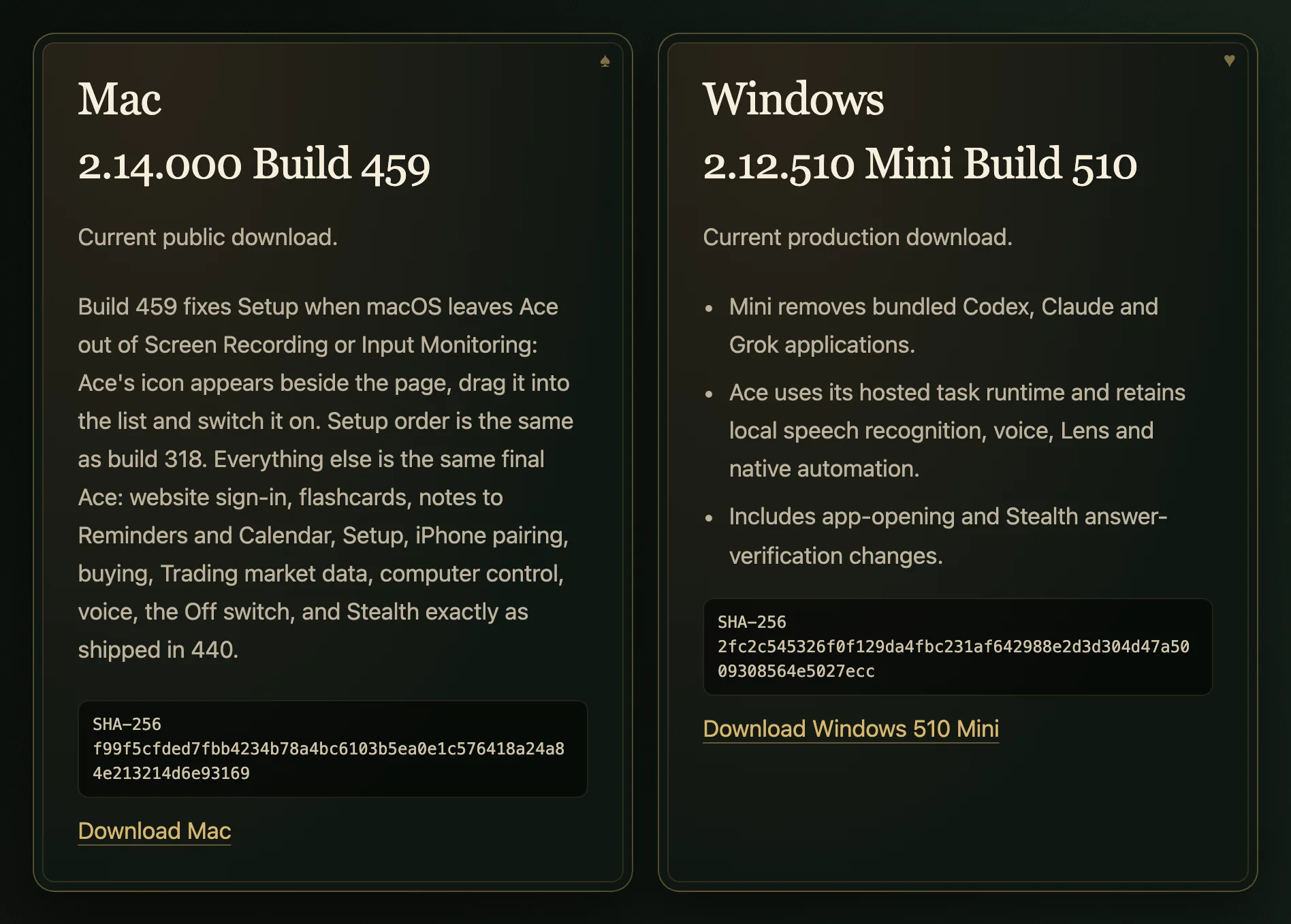
A private setup starts with a genuine file. Ace’s public release record lists each Windows build with its SHA-256 fingerprint. After downloading, open PowerShell in your Downloads folder and run Get-FileHash followed by the installer’s file name; PowerShell uses SHA-256 unless you ask for another algorithm. If the value it prints matches the release record, the file is the one Ace published.
Windows also runs its own signing and installation checks when you open the installer.
What Ace does on a Windows PC
- Runs on Windows 11 and Windows 10, installed from your Ace account.
- Waits for Ctrl + Shift: hold it to talk, or type instead.
- Looks at the screen only when you ask, after you have allowed screen access.
- Handles your files, recordings and work results on the PC.
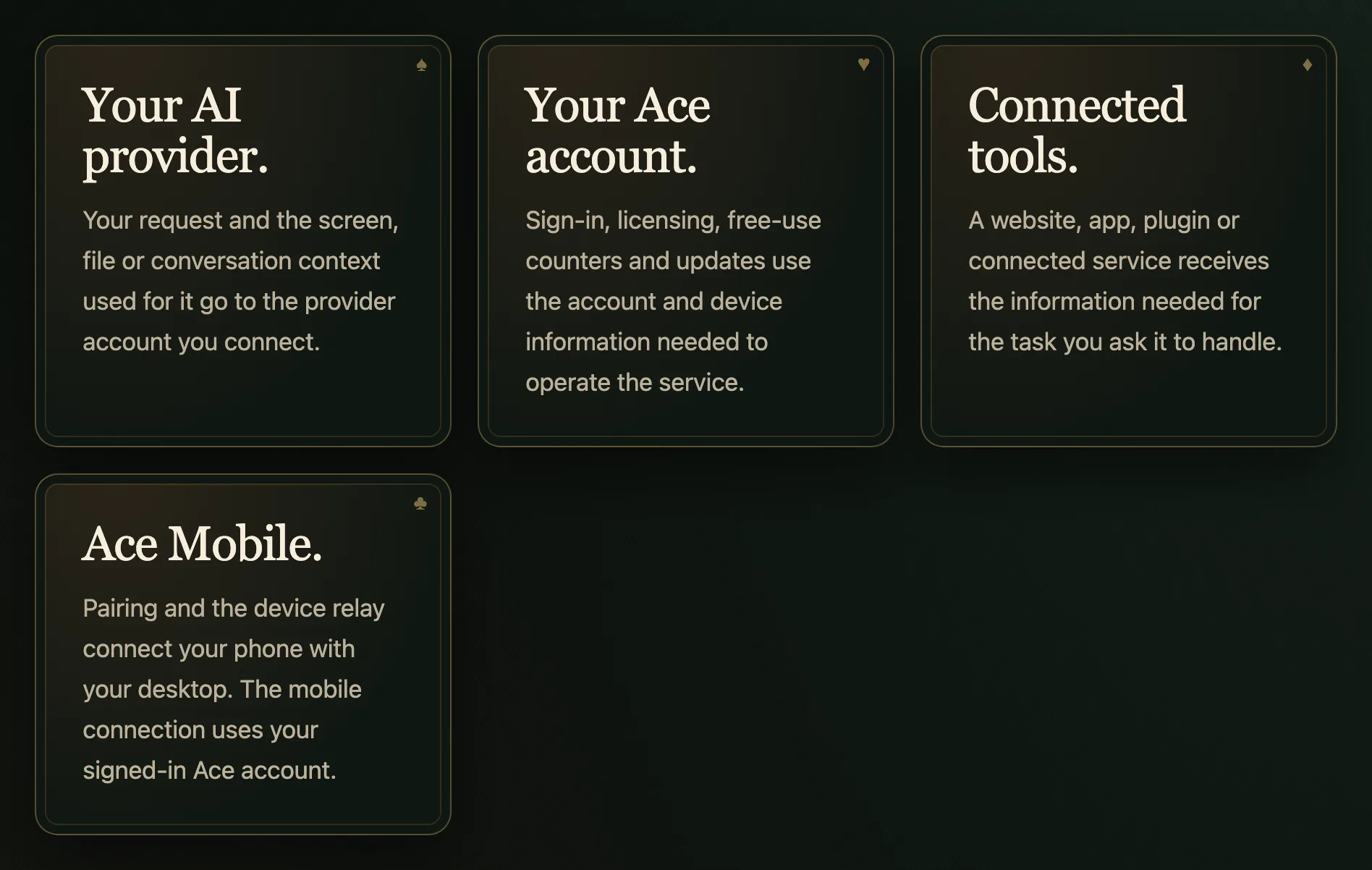
- Sends your request and the context used for it to the AI that answers: Ace’s hosted AI, or your own ChatGPT, Claude or Grok subscription on Table Pass or Private Table.
- Treats the microphone, the screen, files and app control as separate permissions you can revoke.
A private setup checklist
- Download only from the maker’s own site or your account page, and compare the fingerprint.
- Allow the microphone only if you plan to talk to the assistant.
- After installing, go back to Privacy & security and confirm what is switched on.
- Sign out of the assistant on a shared PC, and give each person their own Windows account.
- Disconnect any email, calendar or file connections you are not using.
More from Ace
The full overview of how Ace handles privacy is on tryacee.com/private-ai.
Also asked
Does Ace run on Windows 10?
Yes, on Windows 10 and Windows 11.
Can I stop just one desktop app from using the microphone?
Not with the Windows switch. Microsoft says desktop apps cannot be toggled individually, and one setting covers them all; Store apps have their own switches.
What does Ace send from my PC?
Your request and the context used for it, such as selected text, or a capture of the screen when you ask about it. Files, recordings and work results stay on the PC.
Where does my account data live?
Account, purchase and usage records are kept by Ace’s services, which Cloudflare hosts, and requests are processed by the AI provider for each feature. Your work files stay on the PC.
How do I check that the Ace installer for Windows is genuine?
Compare its SHA-256 fingerprint. Ace’s public release record lists each Windows build with its fingerprint. Open PowerShell in your Downloads folder and run Get-FileHash followed by the installer’s file name; PowerShell uses SHA-256 unless you ask for another algorithm. If the value matches the release record, the file is the one Ace published.
Can Windows Recall capture what my AI assistant shows on screen?
Yes, if you use Recall. Its snapshots can include whatever an AI assistant showed on screen, so pause it when that matters. Recall runs on Copilot+ PCs and is off by default, and nothing is saved until you opt in. Microsoft says Recall filters out snapshots when it detects sensitive information such as passwords or card numbers.
Where do I turn off Recall snapshots or pause them?
Under Settings, Privacy & security, Recall & snapshots, where you can turn saving off. To stop it for a while instead, pause it from the Recall icon in the system tray. Microsoft says Recall stores its snapshots on the device, does not share them with Microsoft or third parties, and needs Windows Hello before it opens.
Why can’t an AI assistant see my screen on a work or school PC?
An administrator may control the screenshot setting. Windows 11 has a privacy control for apps that take screenshots of windows or displays, and on a work or school PC an administrator can force it on or off. An AI assistant that answers about your screen has to capture it, so this is the setting to ask about.
Can desktop apps still reach my microphone when the Windows switch is off?
They might. Microsoft’s own page says desktop apps may not always appear in the list, and they might still be able to reach the camera or microphone even when these settings are off. If you do not trust a desktop app, uninstall it rather than relying on a switch. A microphone icon in the taskbar’s notification area shows while an app uses it.
Is app control switched on by default in Ace for Windows?
No. On Windows, app control is off until you turn it on. Microphone, screen, files and app control each go through your operating system’s own permission prompt, and each can be turned off later. Ace treats the microphone, the screen, files and app control as separate permissions, so you can revoke any one of them.
How should I set up a private AI assistant on a shared Windows PC?
Give each person their own Windows account, and sign out of the assistant when you finish. After installing, go back to Privacy & security and confirm what is switched on. Allow the microphone only if you plan to talk to the assistant, and disconnect any email, calendar or file connections you are not using.
Which keys do I hold to talk to Ace on Windows?
Hold Ctrl + Shift to talk, or type instead. Ace runs on Windows 11 and Windows 10 and is installed from your Ace account. The microphone goes through your operating system’s own permission prompt and can be turned off, and Ace looks at the screen only when you ask, after you have allowed screen access.
More questions
Deal yourself in.
More about Ace
Sources
- Windows camera, microphone, and privacy | Microsoft Support, Microsoft Support. Checked November 14, 2026.
- Privacy and control over your Recall experience | Microsoft Support, Microsoft Support. Checked November 14, 2026.
- Get-FileHash (Microsoft.PowerShell.Utility) - PowerShell | Microsoft Learn, Microsoft Learn. Checked November 14, 2026.